
Image
Image
An image is a lightweight, portable software packaging method used to package an application and all its runtime environment, system libraries, and dependencies into a single file. This file can be loaded and run by containerization platforms (such as Docker, Kubernetes, etc.), thus enabling the rapid deployment and execution of the application.
For bioinformatics analysis, due to different operating systems (Windows, Linux, Mac, etc.), unified operations and maintenance management cannot be achieved. In addition, these software packages have different versions and are complex to install and use. Packaging bioinformatics software into Docker images allows programs to run in different environments, and through the Temporal Cloud platform's image management, efficient invocation is achieved, greatly facilitating software installation and running.
Creating Custom Images
When users perform data analysis, they often need to install various types of tool images. To facilitate users to use various types of analysis tools on the platform, DCS Cloud provides a custom image function. Through custom images, users can freely install images. Click on the image management in the left navigation bar to enter the image management page. Click "Custom Image" to create a new image.

Building Based on Platform Preset Base Image
Step1: Enter the image name, select "Preset Image" for the base image

Step2: Choose a base image

Step3: Fill in the image description and add custom image tags

Step4: Choose the installation method for the tool package
- Direct Installation with Tool Package and Version
You can directly enter the name and version number of the tool package for installation. The installed software will be packaged in the new image, and there is no need to reinstall it next time. For example, to install the code autocomplete tool package, you can enter the tool package name: code‑autocomplete, and the version number: 0.0.4. If you do not enter a version number, it will automatically install the latest version of code‑autocomplete. Click "Next Step", and the system will create a new image.

After the new image is created successfully, you can start the container with the new image and confirm in the container whether the software package is successfully installed.

- Installation with Bash Commands
Enter shell command line code in the Bash instruction input box to perform image installation. For example:
To install a Samtools tool image, enter the installation command for samtools and configure the environment variables. The system will follow the instructions to install. Click "Next Step", and the system will create a Samtools image.

Importing an Image from an External Source
Note
Images imported from external sources can be used to build WDL in the Project > Workflow Analysis > Workflow module, but are currently not supported for Project > Data Analysis (Stereonote) module.

Importing an Image from dockerhub
Step1: Log in to dockerhub (hub.docker.com) and copy the image address.

Step2: Log in to DCS Cloud, when building an image in image management, select "External Import>docker.io". Enter the image address directly to build.
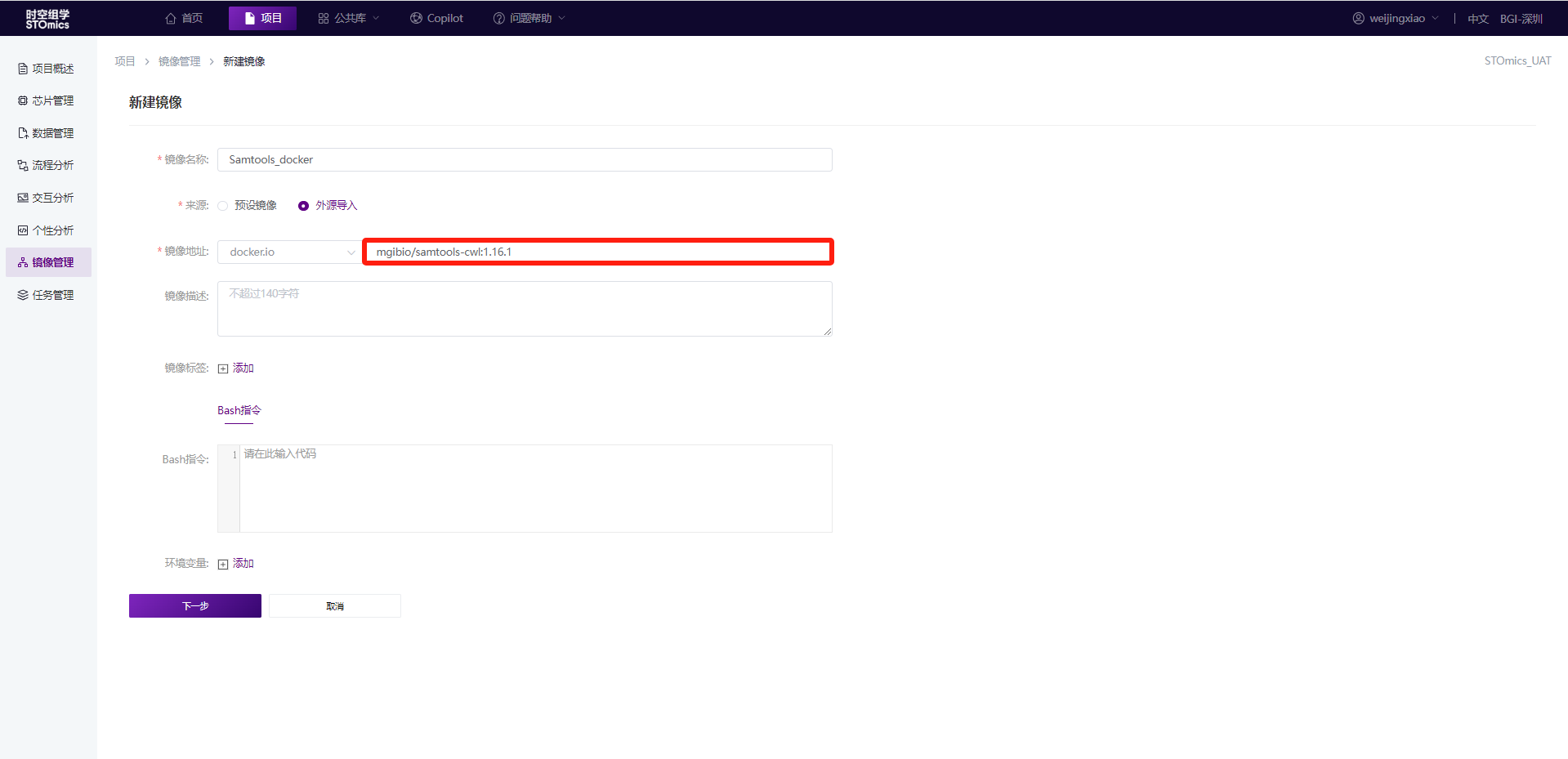
After the image construction is submitted, you can view the image construction status in the project's Image.

Importing an Image from cloud.sylabs.io
Step1: Log in to cloud.sylabs.io and copy the image address.

Step2: Log in to DCS Cloud, when building an image in image management, select "Import from external sources>cloud.sylabs.io". Enter the image address directly to build.

After the image construction is submitted, you can view the image construction status in the project's Image.

Uploading a Local Image File for Construction (Only for internal users of BGI)
Sonatype Nexus Repository Manager is an open‑source repository manager used to store, manage, and distribute software packages and binary files. The platform's Sonatype Nexus Repository Manager supports uploading local image files (currently only supports sif and simg formats). After the upload is complete, you can get the file URL. When building an image in DCS Cloud image management, select "Import from external sources>sif/simg file". Fill in the file URL to build the image directly. The specific steps are as follows:
Step1: Log in to Sonatype Nexus Repository ManagerPlatform Address: mirrors1.sz.cngb.orgPublic Account: stomicscloudAccount Password: ftutFG$K%!cuIl8j

Step2: Upload the local sif/simg file


After the upload is complete, you will see a prompt like the one below, and you can view the uploaded file in the upload directory:


Step3: Copy the file address

Step4: Log in to DCS Cloud, when building an image in image management, select "Import from external sources>sif/simg file". Enter "http://mirrors1.sz.cngb.org/repository/stomicscloud/" + image file address directly to build.

After the image construction is submitted, you can view the image construction status in the project's Image.

Persistently save the online analysis environment.
After starting the container, the toolbox installed by yourself is temporary by default. Click "Save Environment" to persistently save the container environment.

Fill in the image name, image description, and image tags, then save it as a new image.

How to Publish an Image to the Public Repository?
Successfully built images can be published by clicking the "Publish" button, making it easier for others to reuse the image. Published images can be viewed in the public repository.

Images that have already been published support "Update Publish".

How to Add Public Images from the Public Repository?
Users can add images from the public image library to their projects as needed.

Image Usage
- For Creating Analysis Workflows
A workflow is the image packaging of bioinformatics software. For example, you can package Cell Ranger software as an image and upload it to the EIHealth platform. Introduce the image through the workflow, set up the analysis process, and execute the analysis job.
- For Starting Online Analysis in Analysis module
An image is the basis for starting online analysis. When creating an analysis container in the Analysis module, you need to select an image.
