
计费说明
Billing Introduction
Overview
The DCS Cloud (hereinafter referred to as the "Platform") is a cloud-based service platform that cooperates with cloud providers to provide services to you by using the cloud resources they offer. The utilization of such cloud resources will incur costs. In addition, if you use paid tools, processes, etc., on the platform, you will need to pay additional fees to the platform or the creators.
This document will explain in detail the platform's billing function, billing rules, billing methods, and other related information, so you can use the platform's features with confidence and transparency as needed.
Billing scenarios
When you run analysis tasks, store data, download files, and subscribe to tools on the platform, you will incur corresponding expenses. The business scenarios that currently generate expenses or are planned to include, but are not limited to, the following, for your reference:
Project:
- 【Chip】Operations related to data such as downloading ipr files, and various tasks such as run/batch run/re-run/start tasks.
- 【Data】Download files, etc.
- 【Workflow】Running tasks.
- 【Tool】Running tasks.
- 【Analysis】Operations like creating a notebook, mounting data, quick run, offline tasks, resetting resources, cloning, etc.
- 【Task】Re-run, start and download tasks, etc.
Public:
If you copy a public project (as shown in the figure below), you need to select a billing group. Subsequent cloud resource expenses and tool subscription fees for that project will be deducted from that billing group.

Billing item and Pricing
Billing item
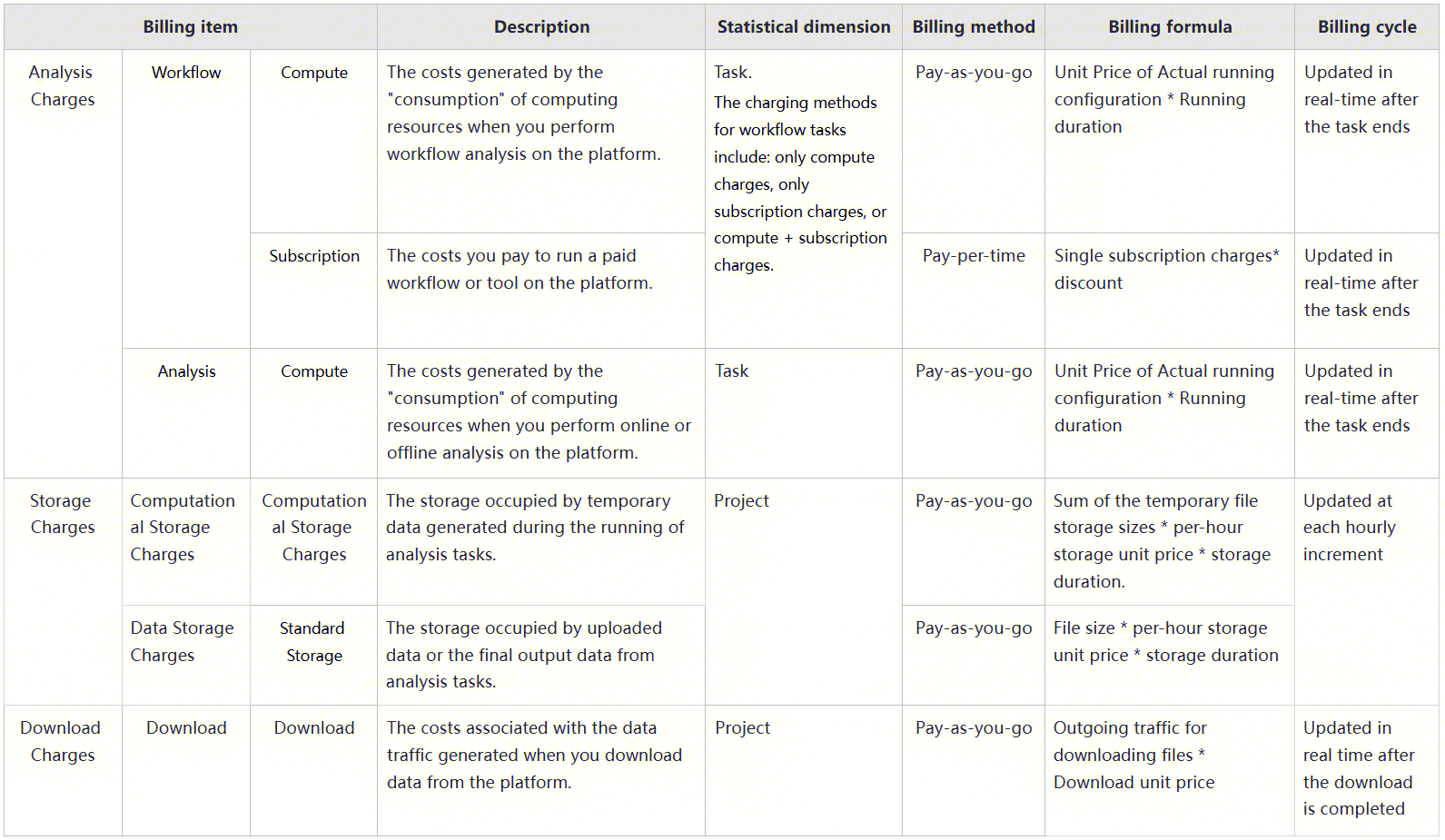
Special Note: Operations such as uploading and copying files are free of charge, but the storage occupied after the files are successfully added will incur storage charges.
Analysis charge unit price
| Instance size | vCPUs | Memory (GiB) | GPU | Price (SGD/hour) |
|---|---|---|---|---|
| ecs.c7a.xlarge | 4 | 8 | 0.2439 | |
| ecs.c7.xlarge | 4 | 8 | 0.2792 | |
| ecs.c6.xlarge | 4 | 8 | 0.2775 | |
| ecs.g7a.xlarge | 4 | 16 | 0.321 | |
| ecs.g7.xlarge | 4 | 16 | 0.3344 | |
| ecs.r7a.xlarge | 4 | 32 | 0.4015 | |
| ecs.r8i.xlarge | 4 | 32 | 0.4147 | |
| ecs.c7a.2xlarge | 8 | 16 | 0.4532 | |
| ecs.c7.2xlarge | 8 | 16 | 0.525 | |
| ecs.c8a.2xlarge | 8 | 16 | 0.5194 | |
| ecs.g7a.2xlarge | 8 | 32 | 0.6084 | |
| ecs.g7.2xlarge | 8 | 32 | 0.6353 | |
| ecs.r7a.2xlarge | 8 | 64 | 0.7694 | |
| ecs.r7.2xlarge | 8 | 64 | 0.7958 | |
| ecs.r5.2xlarge | 8 | 64 | 0.8993 | |
| ecs.c7a.4xlarge | 16 | 32 | 0.8729 | |
| ecs.c8a.4xlarge | 16 | 32 | 1.0055 | |
| ecs.g7a.4xlarge | 16 | 64 | 1.1834 | |
| ecs.g7.4xlarge | 16 | 64 | 1.2372 | |
| ecs.r7a.4xlarge | 16 | 128 | 1.5053 | |
| ecs.r7.4xlarge | 16 | 128 | 1.5581 | |
| ecs.r5.4xlarge | 16 | 128 | 1.7655 | |
| ecs.c7a.8xlarge | 32 | 64 | 1.7124 | |
| ecs.c8i.8xlarge | 32 | 64 | 1.9995 | |
| ecs.g6.6xlarge | 24 | 96 | 1.9775 | |
| ecs.g7.6xlarge | 24 | 96 | 1.839 | |
| ecs.g7a.8xlarge | 32 | 128 | 2.3332 | |
| ecs.g7t.8xlarge | 32 | 128 | 2.5615 | |
| ecs.hfr6.6xlarge | 24 | 192 | 2.7455 | |
| ecs.r7.6xlarge | 24 | 192 | 2.3205 | |
| ecs.hfr6.6xlarge | 24 | 192 | 2.7455 | |
| ecs.hfc6.10xlarge | 40 | 96 | 2.8335 | |
| ecs.r7a.8xlarge | 32 | 256 | 2.9772 | |
| ecs.r7.8xlarge | 32 | 256 | 3.0828 | |
| ecs.r5.8xlarge | 32 | 256 | 3.4971 | |
| ecs.c7a.16xlarge | 64 | 128 | 3.3913 | |
| ecs.hfg6.10xlarge | 40 | 192 | 3.5935 | |
| ecs.g6e.13xlarge | 52 | 192 | 4.6667 | |
| ecs.g7.16xlarge | 64 | 256 | 4.8482 | |
| ecs.r6e.13xlarge | 52 | 384 | 5.8679 | |
| ecs.hfc6.20xlarge | 80 | 192 | 5.6335 | |
| ecs.r8a.16xlarge | 64 | 512 | 6.0626 | |
| ecs.r5.16xlarge | 64 | 512 | 6.9599 | |
| ecs.c6.26xlarge | 104 | 192 | 6.3775 | |
| ecs.g8a.24xlarge | 96 | 384 | 7.1732 | |
| ecs.r7.32xlarge | 128 | 1024 | 12.2307 | |
| ecs.i3.26xlarge | 104 | 768 | 12.6597 | |
| ecs.gn5-c28g1.14xlarge | 56 | 224 | 2P100-gpu | 8.7575 |
Storage charge unit price

Note: Hourly unit price = Monthly unit price/30 (days)/24 (hours)
Download charge unit price

Billing example
Analysis Charges
Analysis charges consist of compute charges and subscription charges.
Compute Charges are charged based on the "duration of occupation of a computing node with a certain specific configuration (instance specification)." If a task involves multiple steps, the platform will calculate the compute charges for each step and then sum up the charges of all steps to obtain the total compute charges for the current task. Subscription charges are levied according to the charges specified by the platform or the creator based on the number of task executions.
Currently, only compute charges are collected for analysis online and offline tasks. For other analysis tasks (workflow analysis), depending on the charging method and task status, the analysis charges are calculated as follows:
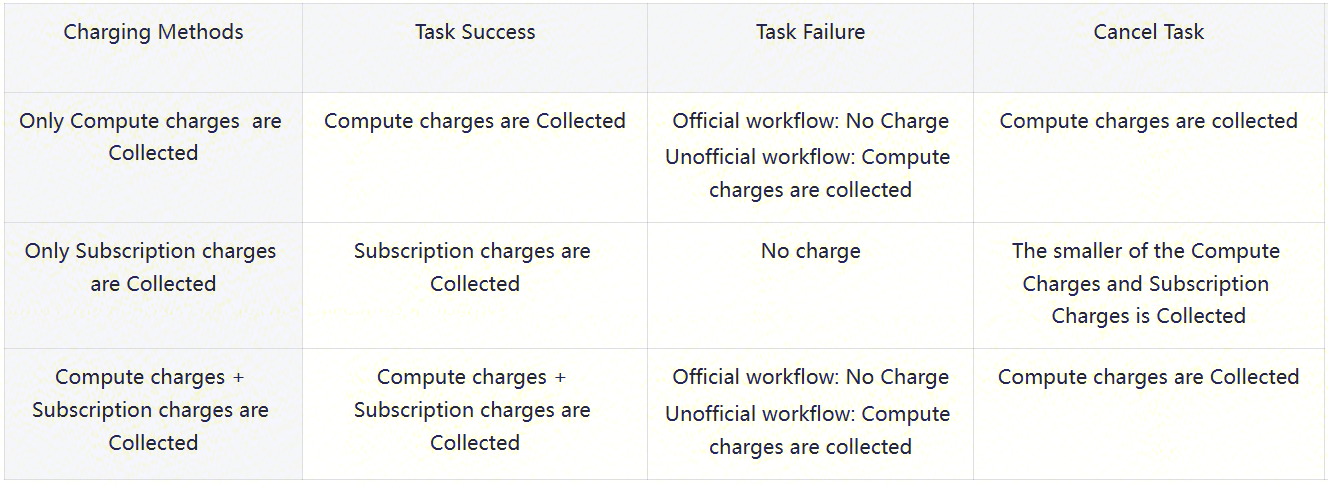
The definition of official workflow can be found in: Definitions
- Example 1:Billing for tasks with only compute charges collected
- Task Success: Suppose you submit a workflow analysis task on the platform, and only compute charges are collected for this task. The task consists of 5 steps. The table below assumes the configurations used and the running durations, and based on these, the task analysis charge is calculated to be 8.25 SGD.
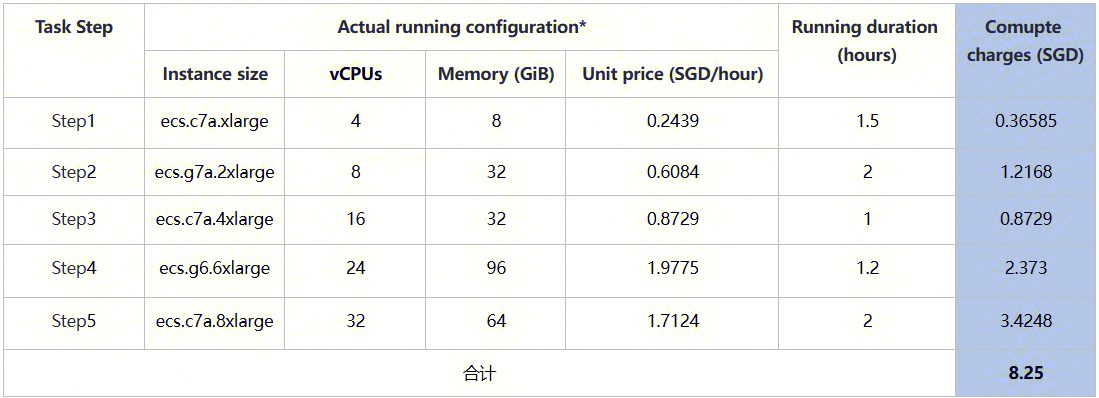
*Note:Actual running configuration may differ from your requested configuration. For reference, see: Definitions.
2)Task Failure:
If in the above example, the task you submitted is a platform's official workflow task and it fails during step 3, the analysis charge will be 0.
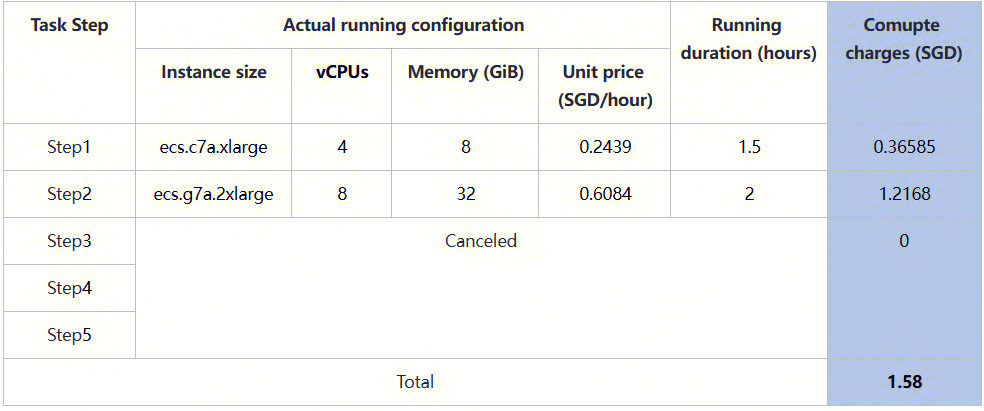
If in the above example, the task you submitted is a non-platform official workflow task and it fails during step 3, only the analysis charges of step 1 and step 2 will be calculated, amounting to 1.58 SGD.
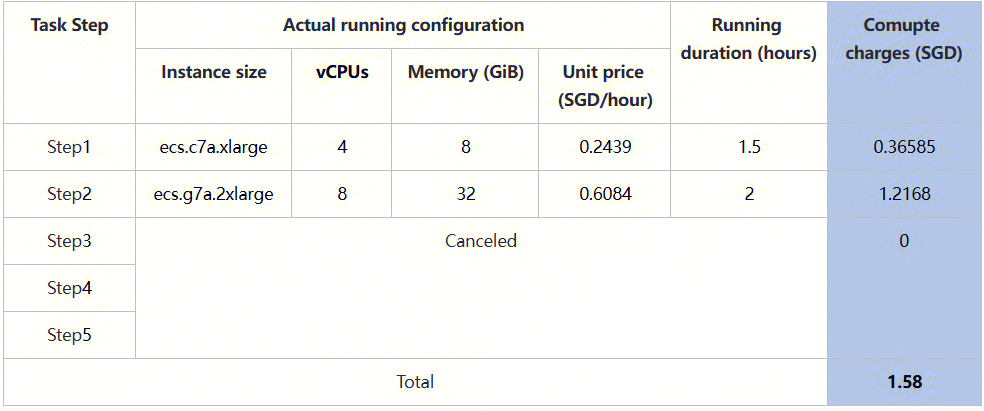
3)Task Cancellation: If in the above example, you cancel the task during step 3, only the analysis charges of step 1 and step 2 will be calculated, amounting to 1.58 SGD.
- Example 2:Billing for tasks with only subscription charges collected
Suppose you submit a workflow analysis task on the platform, and only subscription charges are collected for this task. The pricing of this workflow is 20 SGD and no discount gradient is set. The analysis charges for different task statuses are calculated as follows:
- Task Completion: The analysis charge is the subscription charge, which is 20 SGD.
- Task Failure: No analysis charge is charged, so it is 0.
- Task Cancellation: Suppose when you cancel the task, the compute charges are as shown in the following table. Since the compute charges are less than the subscription charge, the analysis charge is the smaller amount, which is 1.58 SGD. Conversely, if the compute charges are greater than the subscription charge when cancelled, the analysis charge is the subscription charge, which is 20 SGD.
- Example 3: Billing for tasks with compute charges +subscription charges collected
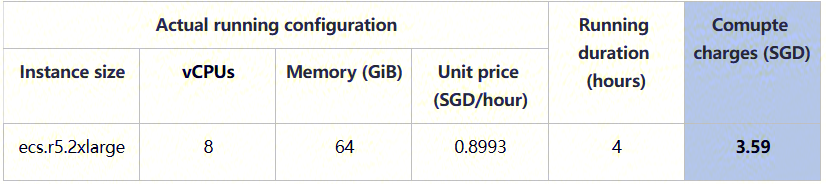
Suppose you submit a workflow analysis task on the platform, and the charging method for this task is to collect both compute charges and subscription charges. Assume the cost conditions are as shown in the following table. Based on this, the analysis charges for different task statuses are calculated as follows:
1)Task Completion: The analysis charge is the sum of the compute charges and the subscription charges, which is 21 + 3.59, that is 24.59 SGD.
2)Task Failure: If the workflow is an official workflow, no fee will be charged, and the analysis charge will be 0; If it is a non-official workflow, compute charges will be charged, amounting to 3.59 SGD.
- Task Cancellation: Compute charges for the analysis will be charged, amounting to 3.59 SGD.
Suppose the workflow subscription price is 21 SGD/time, and the compute charges when the task is completed are as follows:
- Example 4:Billing for Analysis tasks
Suppose you submitted a notebook analysis task on the platform. The table below assumes billing conditions and calculates the analysis charge for the task to be 1.35 SGD.

Storage Charges
Computational storage charges are charged based on storage size and duration. Storage size is calculated based on the file size at the time of billing. If multiple files are generated during a task's runtime, the storage size of all files at the billing point is summed to calculate the computational storage size. Data storage charges are charged based on the size of the file and duration.
Storage charges are calculated with a minimum storage duration of 1 hour.
- Example 1
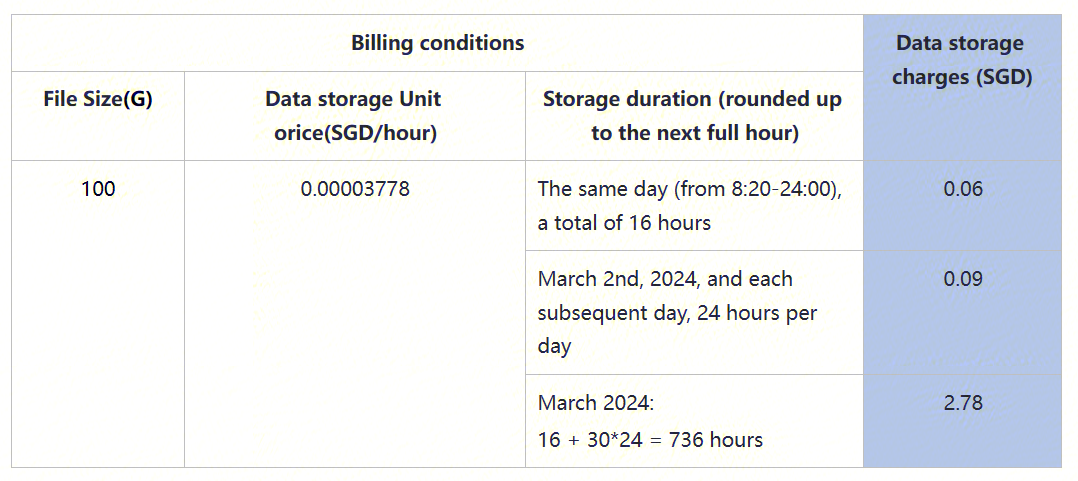
If you uploaded a 100G file to your Project A on the platform at 8:20 AM on March 1st, 2024, and there are no other data files in that project, then the data storage charges for Project A with different storage durations are as detailed in the following table.
- Example 2
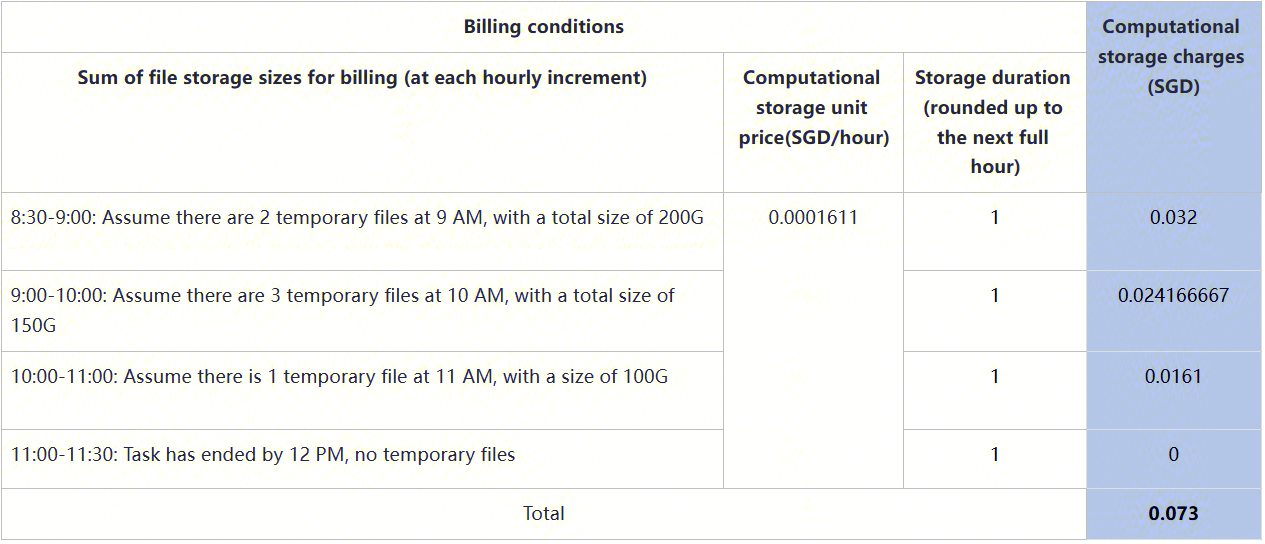
Suppose that on March 1st, 2024, at 8:30 AM, you submitted an analysis task for Project B on the platform, and the task ended at 11:30 AM, with no other analysis tasks during that period. The table below assumes billing conditions and accordingly calculates the computational storage charges for Project B during this period to be 0.073 SGD.
- Example 3
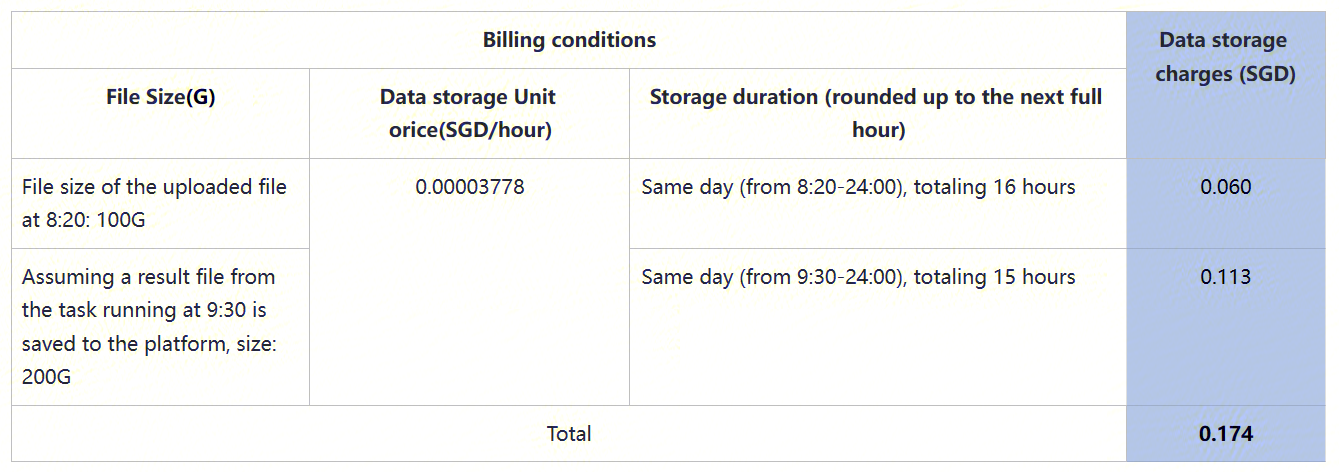
Assuming that you uploaded a 100G file to your Project C on the platform at 8:20 AM on March 1, 2024, and at 8:30 you submitted a standard analysis task based on that file. The two tables below assume billing conditions and accordingly calculate Project C's data storage charges and computational storage charges for that day. Therefore, the total storage charges for Project C for that day would be 0.24 SGD after adding both.
Data storage charge:
Computational Storage charge:
Download Charges
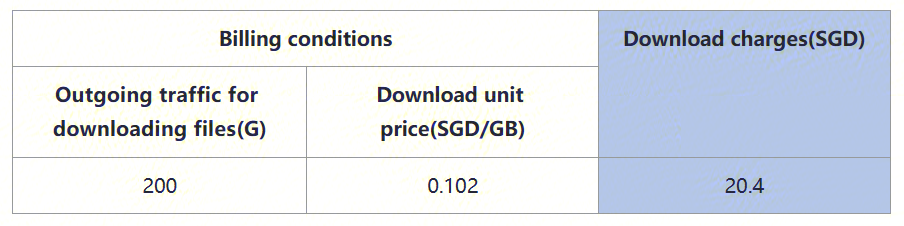
Download charges are charged based on the outgoing traffic of the downloaded files. Multiple downloads of the same file will generate multiple traffic instances, and the download charges will be calculated accordingly.
- Example 1
Suppose you download a file from the platform, and the operation results in a total outgoing traffic of 200G, then the download charge would be 20.4 SGD, as shown in the table below.
Recharge and Invoice
The platform adopts a prepaid model, which needs to be recharged before use.
Free trial
After you successfully register, the platform will automatically create a default billing group named after your username (i.e., XXX billing group) and award you some trial funds, which you are welcome to use to try out the platform's features. The trial funds have no expiration date and are valid until used up.
The trial funds cannot be transferred or refunded, and the amount is based on the platform's policies. Please refer to the registration success notification email you received.
Recharge
Recharge
You can contact the platform’s official email: cloud@stomics.tech to sign a contract and recharge.
If you need to create a new billing group, please contact cloud@stomics.tech.
Recharge Instructions for Sub billing group
For details on billing group types, please refer to: Definitions.
If you have a signed contract with a partner, you may also contact the master billing group owner for transfer-based recharge. Contact information for the master billing group owner can be found on the Billing account homepage:

Special Instructions for BGI internal project billing group
For details on the scope of BGI internal project billing group, please refer to: Definitions.
The business billing group and CRM billing groupwill also receive some trial funds from the platform, which can be used for downloading files and experiencing features. To continue recharging, you can:
1)If the contract signed for the project includes bioinformatics analysis fees, please contact the corresponding salesperson. The sales will coordinate with the platform's official email cloud@stomics.tech for recharge.
2)You can also contact the platform's official email cloud@stomics.tech to sign a new analysis contract with the platform and then recharge.
Apply for invoice
The amount you actually recharge on the platform can be applied for an invoice. Please note that the platform trial funds and other amounts given as gifts cannot be applied for an invoice.
If you need an invoice, please send the billing information to cloud@stomics.tech to apply for an invoice. We will review the information and issue an invoice.
Refund
If you have owner rights to a billing group (for details on billing group members and their permissions, please see: Definitions), the platform supports refunds for the balance of the billing group.
For refunds, please contact the platform's official email:cloud@stomics.tech.
Special Notes:
(1) When you initiate a refund, the projects associated with the billing group must not have any queued or running tasks. You must wait until all tasks have ended and the bill has been updated before proceeding with the refund operation.
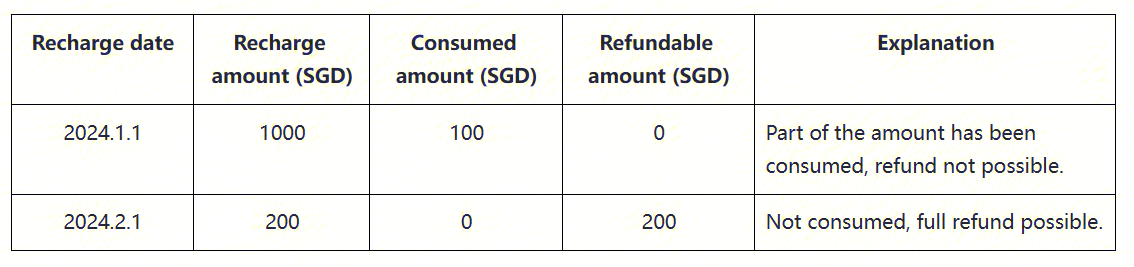
(2) The current platform only supports full refunds based on the fapiao amount and does not support partial refunds. See the table below for examples.
Cost reminder and delinquency handling
Low balance risk reminder
If the balance of a billing group falls below 100, and you have owner rights to this billing group (for details on billing group members and their permissions, please see: Definitions), you will receive a low balance reminder email.
To avoid the risk of accruing debt and being unable to use platform features, which could affect your normal work, it is recommended that you promptly recharge your billing group upon receiving this email, as detailed in: Recharge.
Handling of outstanding charges
When the balance of the billing group is less than 0, the platform will start the delinquency verification. At this time, the project associated with the billing group cannot run analysis tasks, upload/download data and other operations that require payment. At the same time, the data stored by the project will continue to incur storage charges, causing the amount owed by the billing group to continue to increase.
Special Note: For the BGI internal project billing group, mask files (h5 files) for associated projects can still be downloaded during the period of overdue fees. The download will be charged and accounted for normally. The scope of BGI internal projects is as follows: Definitions.
Bill inquiry
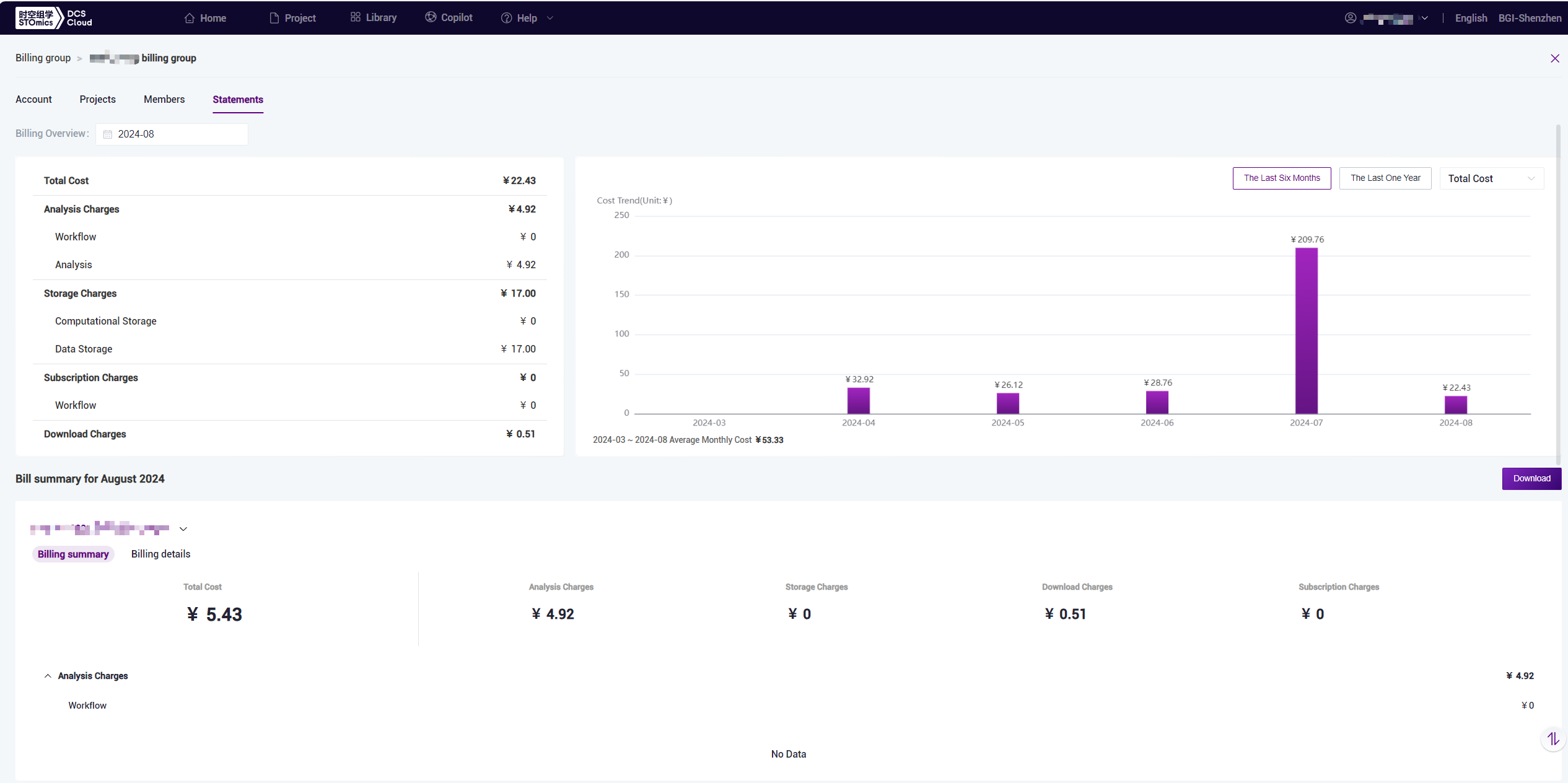
Billing group owners can view account balances and expense bills.
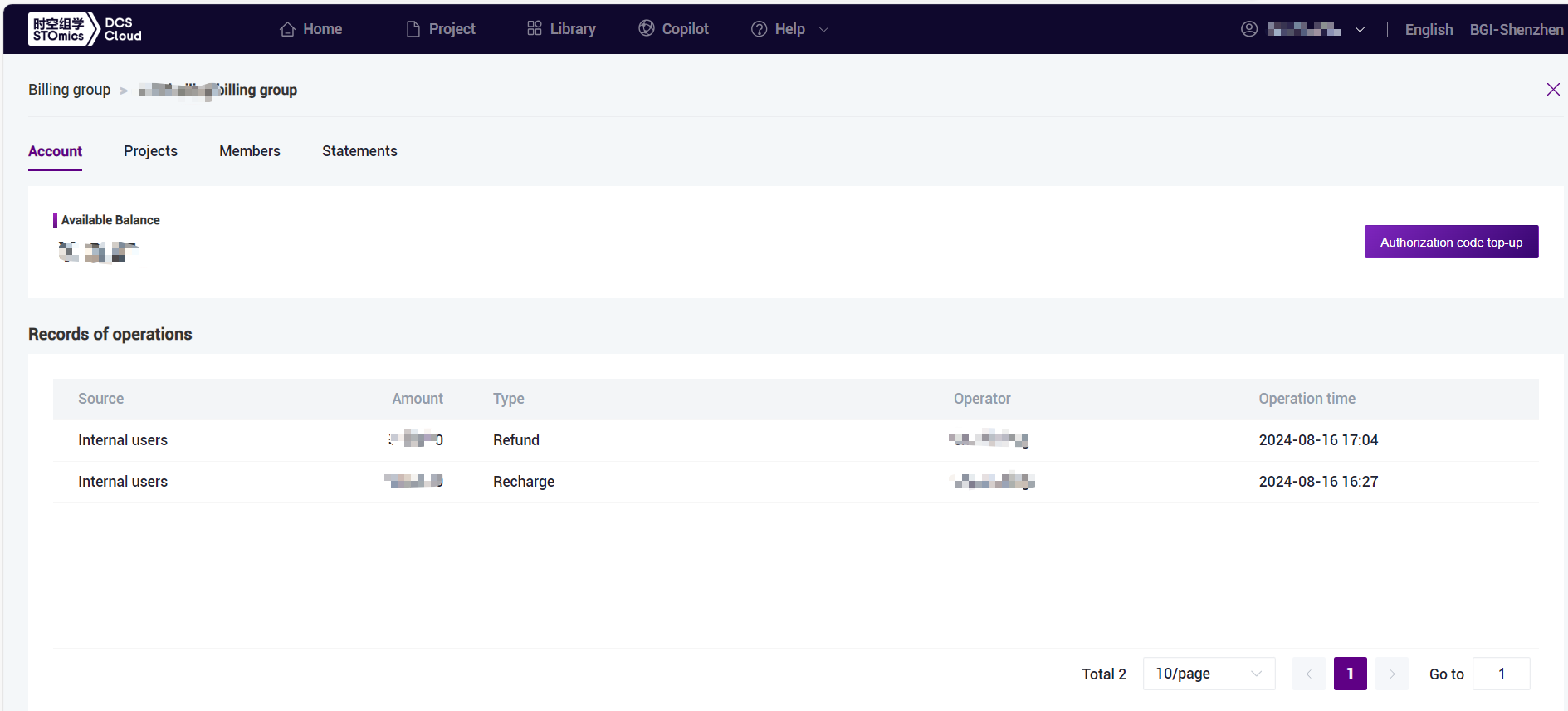
In the Account menu, you can view the billing group's balance, recharge/refund, and other operation records.
In the Statement menu, You can view and download monthly bills. You can also switch to viewing trends over the last six months or the last one year.
Member management
Billing group owners can manage members. For details on billing group members and their permissions, please see: Definitions.
In the Member menu, you can view and manage billing group members.

1)Add Member
- The member being added must be registered on the platform. Add by entering the platform's username, as invitation through email is not supported.
- It is possible to choose whether the added user is an owner.

2)Edit/Delete member
Supports editing member roles.

Please note: If the current billing group has only one owner, you cannot edit the member's role or delete the member.

Manage sub billing groups
Create a new sub billing group
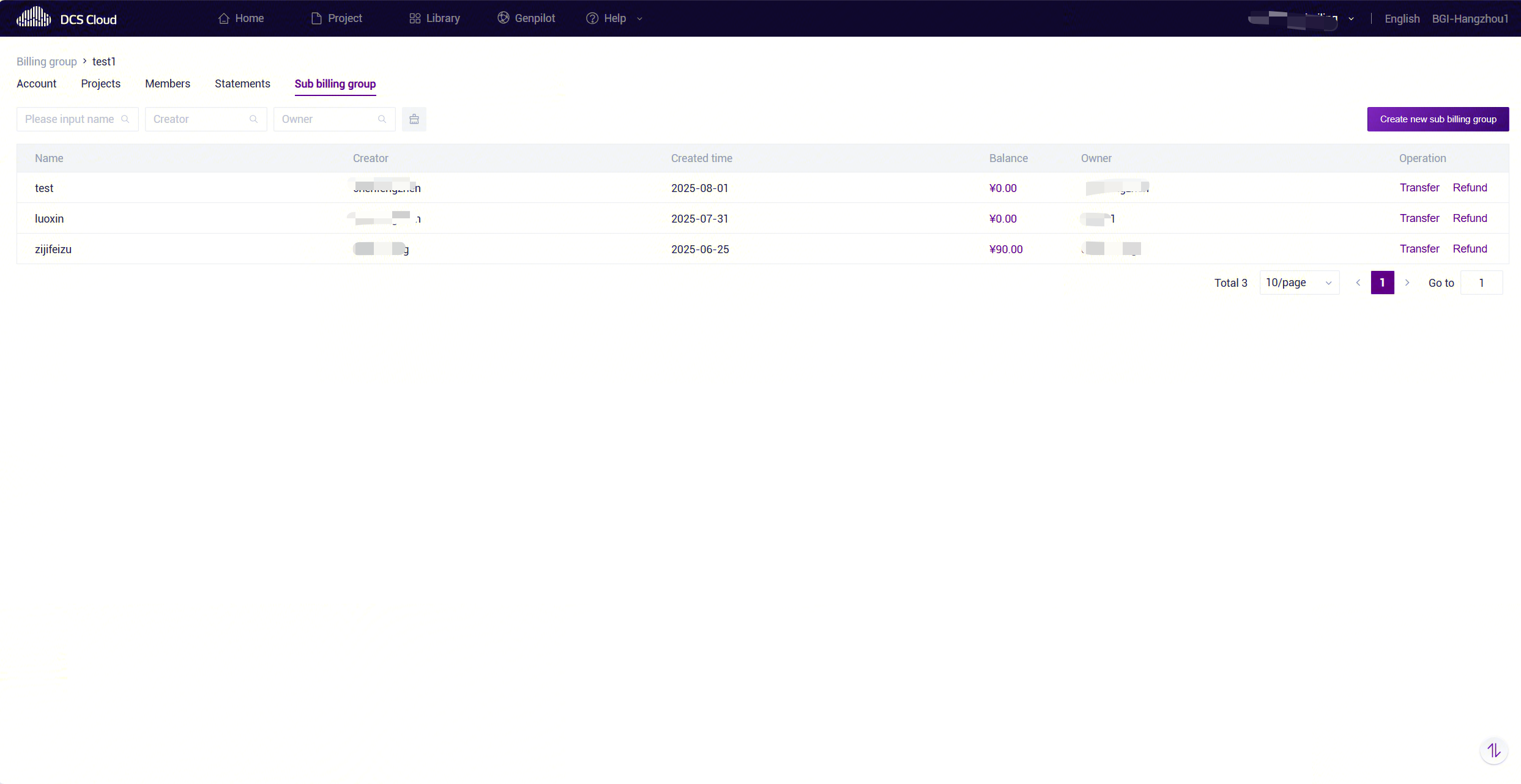
Enter the master billing group, switch to the sub billing group tab, and you can view all sub-billing groups.
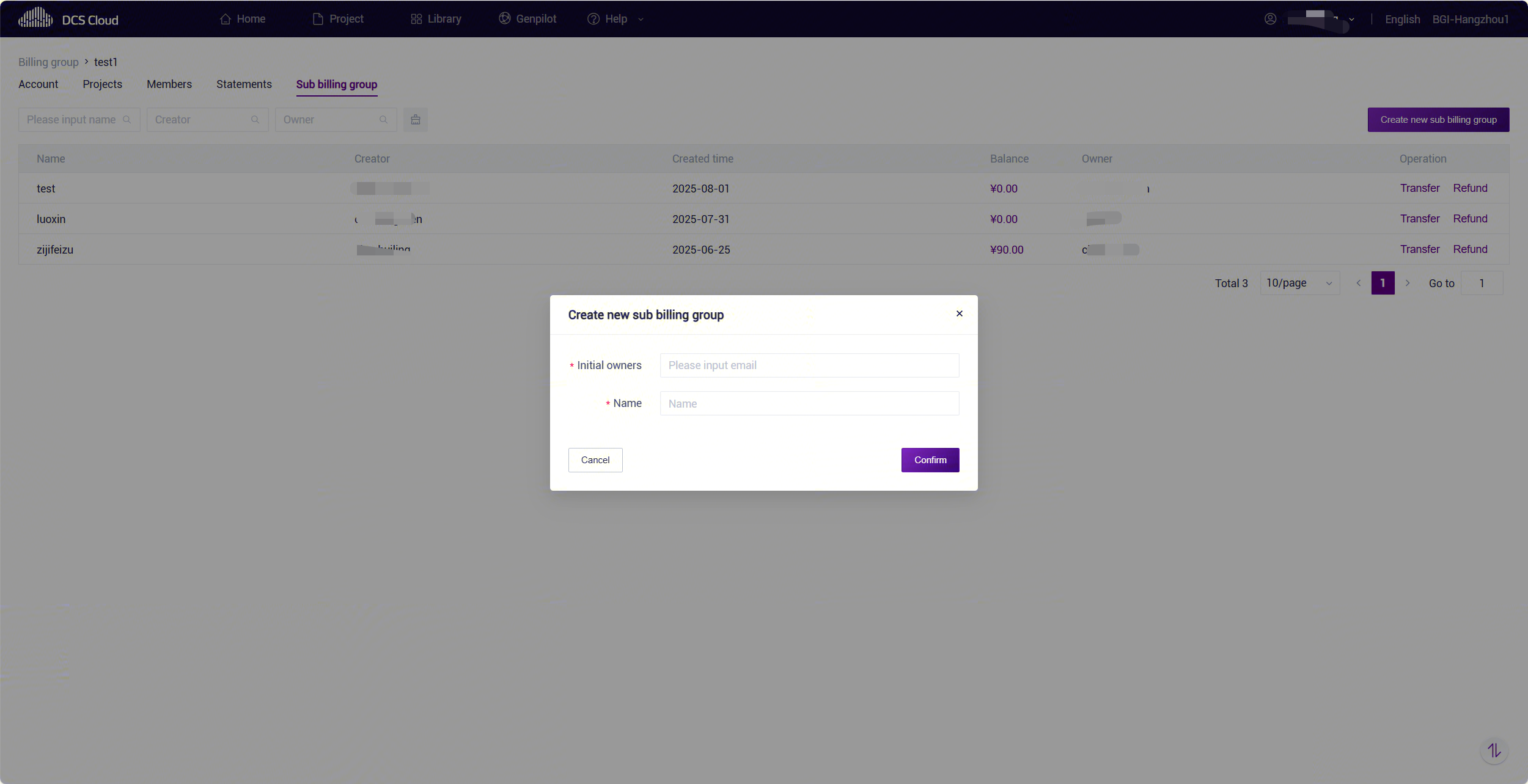
Click "Create new sub billing group", input the user's email, and specify an owner of the sub billing group. For the owner's permissions, please refer to: Definitions. Note: If the email is not registered on the platform, it cannot be added as an owner.
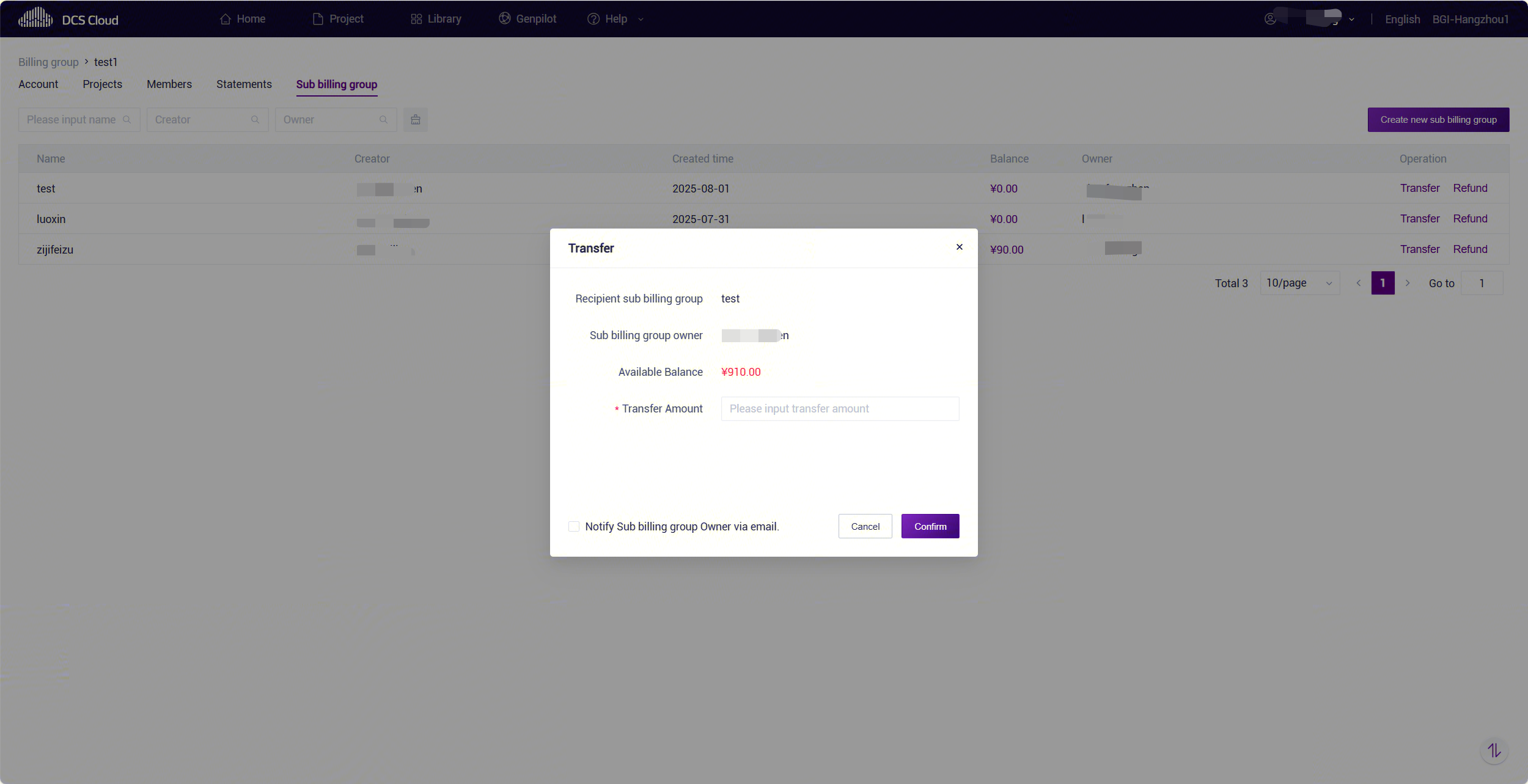
Transfer
Click "Transfer" to transfer to a sub billing group. The transfer amount cannot exceed the balance of the master billing group.
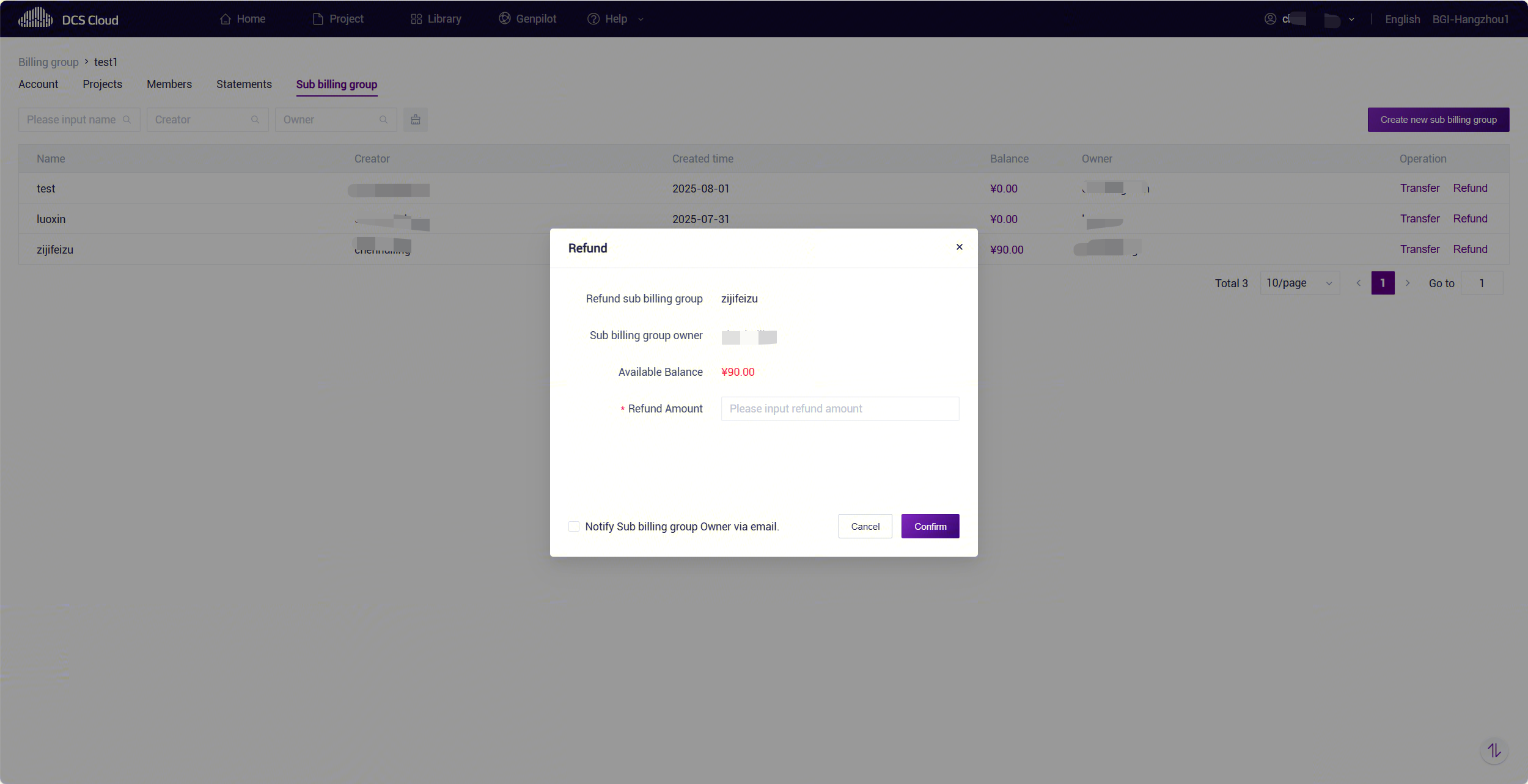
Refund
Clicking "Refund" allows the balance of the sub billing group to be refunded to the master billing group. Please note:
- The refund amount cannot exceed the balance of the sub billing group.
- At the time of refund, there must be no tasks under the sub billing group’s projects that have pending cost settlements, such as tasks in the queue, running, being imported, or under cost calculation.
- After refunding, please remind the sub billing group’s project to promptly delete project data to avoid additional charges.
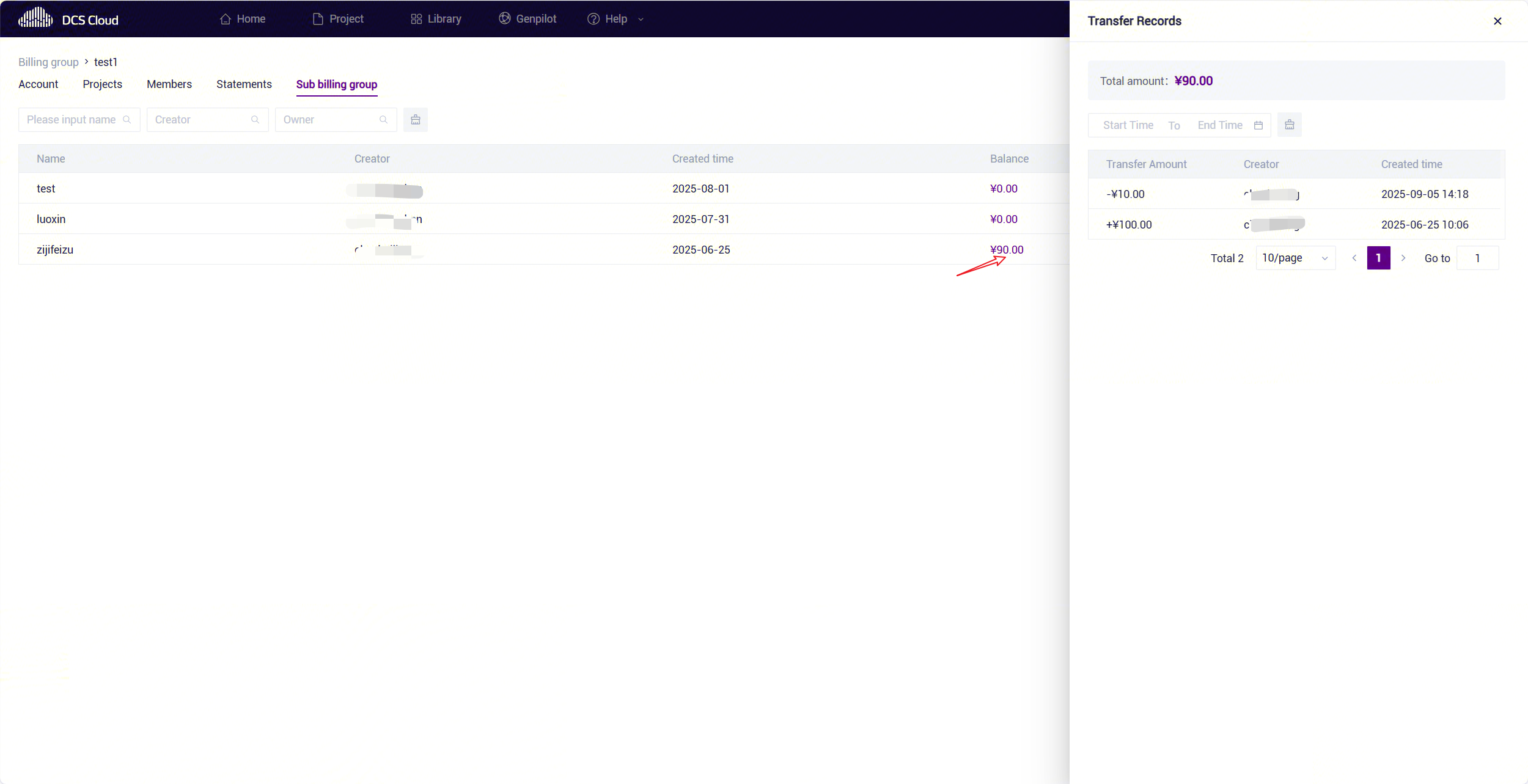
View Transfer Records
Click on the balance figure to view the transfer records of the sub billing group.
FAQ
1.Why am I incurring costs every day when I haven't done anything on the platform?
Storage charges are incurred daily for data that you have uploaded/generated on the platform, which are regularly deducted from the billing group associated with the project. It is advisable to promptly clean up project data to avoid unnecessary costs.
2.My task has ended/closed, why do I still incur computational storage costs?
The temporary files generated by the analysis (files in the work and task directories) will continue to incur computational storage costs. After saving important files (see: Save Data), you should clear them in time.
3.Why are my analysis charges so high?
The unit price for analysis on the platform is charged according to the platform's listed prices, and the reasons for high costs may include:
(1) To meet your analysis needs, the cloud provider has allocated instances with higher configurations, leading to a higher price per unit of analysis.
(2) Analysis steps are complex, causing the task to run for a long time. Additionally, if you are running a notebook analysis task and do not promptly close the running page, this period of time will also be included in the running duration of the task. It is advised to close tasks promptly to avoid unnecessary charges.
4.Why is there a discrepancy between the amount calculated after I download the billing details and the amount displayed on the page?
The billing details may be issued 0.5 to 1 hour later than the billing group balance and summary, which may lead to inconsistencies.
5.My project is in arrears, and I want to move the project data to another project for analysis, what should I do?
For projects in arrears, it is recommended that you recharge promptly to avoid affecting your normal work. If you need to move the data to another project for analysis, ensure that the billing group for the new project has sufficient balance, and then proceed with data migration:
Suppose you want to copy data from Project A to Project B, you can use the "Copy from project" function on the [data] page of Project B to select and copy the files from Project A, as shown in the figure below. After completing the data migration, promptly clean up the data in Project A to avoid additional storage charges, as the platform will also periodically clear data for projects that continuously incur arrears.

Please take special note: Files generated from notebook analysis tasks need to be saved before(see: Save Data). If your project is currently in arrears, you will not be able to start a notebook analysis to save data; in this case, you will need to recharge first, see: Recharge.
Update note
The platform will adjust the billing rules from time to time based on actual circumstances. Should there be any changes, we will update this document promptly and notify you.
If you have any questions or needs, please contact the official platform email: cloud@stomics.tech.
Appendix:Definitions
Billing group: The platform’s recharge and consumption functions are operated and accounted for on a billing group basis.
- Relationship between billing group and project: A project can only have one billing group associated with it, but a billing group can be associated with multiple projects.
- Relationship between billing group members and project members: Both a billing group and a project can have multiple members, but the list of members may differ between them.
Billing group type: Include master billing group, sub billing group, and ordinary billing group:
- Ordinary billing group: The most common type of billing group on the platform, suitable for personal projects and internal projects.
- Master billing group: Created by the platform, applicable to B2B users of the platform, and supports the management of sub billing groups.
- Sub billing group: Created by the master billing group, suitable for partners of B2b users.
Billing group member: Billing group members are divided into two roles: owner and user. The role menus and functional permissions are as follows.

Project type: There are currently three types of projects on the platform:
- Business Project: Projects synchronized from the BGI STOmics Business Management System. The billing group defaults to the business project number(i.e., Business billing group). Additionally, some business projects are established based on PM projects in the BGI STOmics Business Management System. Upon user request, the billing group is updated to the corresponding PM billing group.
- CRM Project:Projects synchronized from the BGI CRM system. The billing group defaults to the CRM project number( (i.e., PM billing group).
- Personal Project: Projects you create using the platform’s "Create Project" feature.
Among them, PM projects, Business projects and CRM projects are collectively referred to as BGI internal projects.
- Billing cycle: The frequency at which the platform issues billing statements, such as hourly, daily, monthly, etc.
- Instance specification: Server specifications used for running tasks; different specifications represent different CPUs and memory capacities, with varying prices.
- Requested configuration: The instance specification you apply for running tasks.
- Actual running configuration: The actual instance specification used during task execution. Due to factors such as cloud provider supply, differences in task schedulers, etc., the actual running configuration may differ from the requested configuration. The final cost will be calculated based on the actual running configuration.
- Official workflow: Refers to the workflows marked with "DCS," as shown in the diagram below.
